
Fun with Photoshop pt2
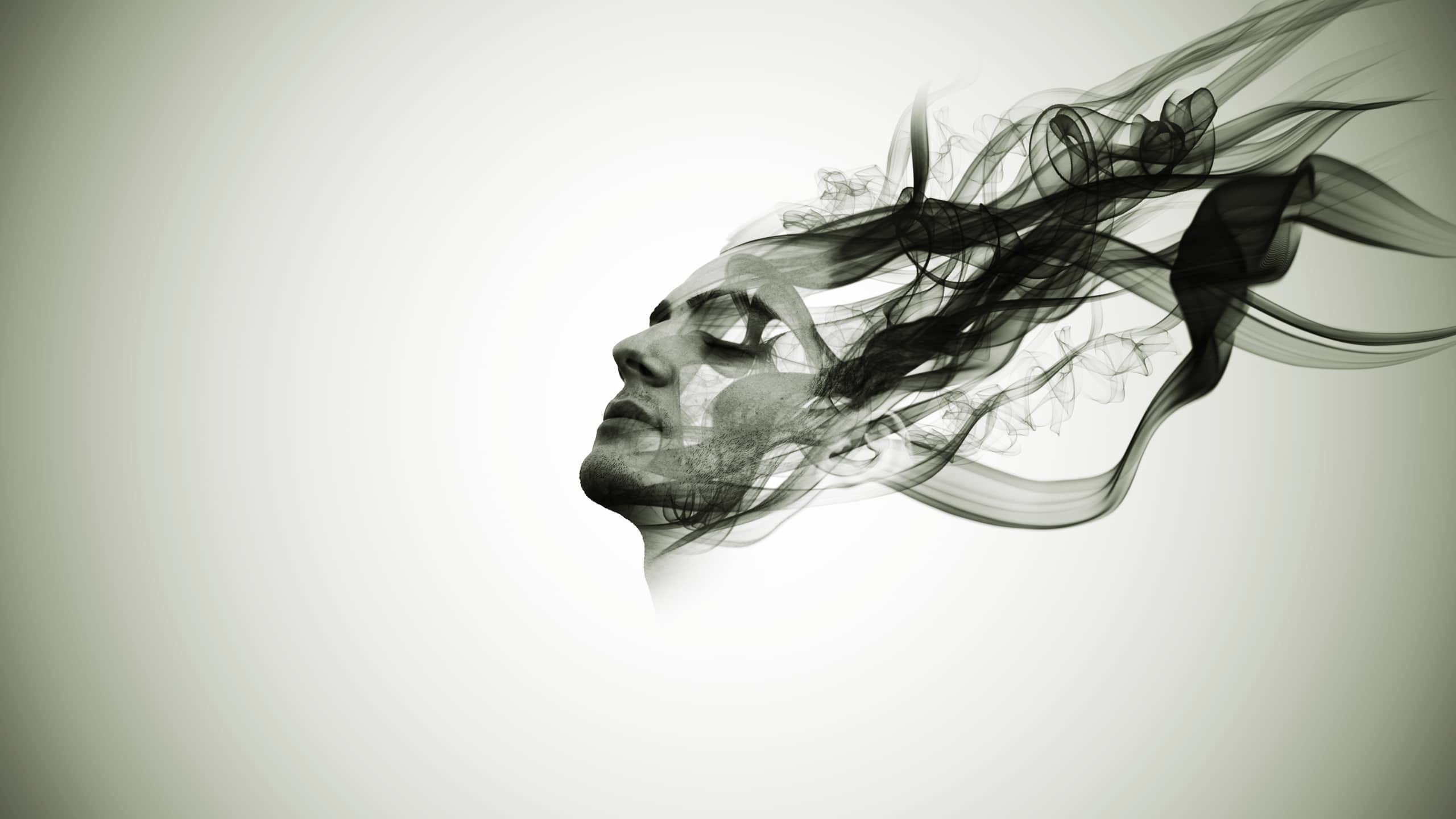
In today’s lesson, you’re going to learn how to create a smoky effect using Adobe Photoshop. This effect makes your subject look like it is fading, dissolving, or transforming into smoke. It’s a powerful way to tell a story through your design.
As you work through this project, think beyond just the steps. Think about meaning. Smoke can represent something disappearing, something changing, or something temporary. As designers and photographers, we don’t just create images, we communicate ideas and emotions.
This project will also help you build important skills like masking, brush control, and creative editing. These are tools you’ll use in many future designs.
Scripture
Psalm 102:3 (HCSB)
“For my days vanish like smoke, and my bones burn like a furnace.”
This verse reminds us how quickly things can fade or pass away, just like smoke. In your design, you are visually showing something similar, how something solid can appear to dissolve and disappear.
As you create, think about this:
- What story does your image tell?
- What is fading, changing, or being revealed?
- How can your design reflect something deeper, not just visually, but meaningfully?
Let your work be more than just an effect. Let it communicate something real.
Course Content
Tutorial
Create a Smoky Effect
What You’ll Need
- Adobe Photoshop
- A subject photo (person works best)
- Smoke brushes (download a free smoke brush set online)
Step 1: Create Your Document
- Open Adobe Photoshop
- Go to File > New
- Name your project “Smoke Effect”
- Use any size (example: 2560 x 1480 px, 300 resolution)
- Click Create
Step 2: Add Your Image
- Drag your subject image into Photoshop
- Press Enter to place it
- Right-click the layer → click Rasterize Layer
Step 3: Remove the Background
- Go to Select > Subject
- Photoshop will auto-select your subject
- Click the Layer Mask button
- Right-click the mask → Apply Layer Mask
Step 4: Resize and Position
- Hold Alt (Option on Mac) and drag a corner to resize proportionally
- Move your subject to the center
Step 5: Add Black & White Effect
- Click Adjustment Layer > Black & White
- Set preset to Darker
- Right-click that layer → Create Clipping Mask
(This makes the effect apply only to your subject)
Step 6: Create the Smoke Shape (Liquify)
- Select your subject layer
- Go to Filter > Liquify
- Choose the Forward Warp Tool
- Use bracket keys
[ ]to change brush size - Gently drag edges outward to stretch them
(This gives the “breaking apart” smoke look)
- Click OK
Step 7: Add an Inverted Mask
- Hold Alt and click Add Layer Mask
- This creates a black mask (hides everything)
- Lower mask Density to about 85%
(This helps you see while working)
Step 8: Paint the Smoke Effect
- Select the Brush Tool
- Load your smoke brushes
- Set color to white
- Start clicking (NOT dragging!)
Tips:
- Tap lightly to build the effect
- Change brush size and rotation often
- Don’t overdo it, less is better
Step 9: Bring Back Important Details
- Switch to a soft round brush
- Gently paint over:
- Face
- Important features
(This keeps your subject recognizable)
- Set mask density back to 100%
Step 10: Group Layers
- Select:
- Subject layer
- Black & white layer
- Press Ctrl + G to group them
Step 11: Add Background Gradient
- Add Gradient Fill Adjustment Layer
- Set:
- Color: Black
- Style: Radial
- Check Reverse
- Scale: ~330%
- Move this layer below the group
Step 12: Add Color Effect
- Add Gradient Map Adjustment Layer
- Choose a blue gradient (or any color)
- Set:
- Blending Mode: Overlay
- Opacity: 40%
Step 13: Add Contrast
- Add Curves Adjustment Layer
- Create a slight S-curve
- Darken shadows
- Brighten highlights
Final Result
You now have a smoky effect where your subject appears to dissolve into smoke.
Homework
Select your own image and create the smoke effect.
- Export as JPG
- Upload to Google Classroom
- Write 2–3 sentences:
- What does the design represent
Submit the 7 designs you will be showcasing for Open House if you haven’t already