
Fun with Photoshop pt1
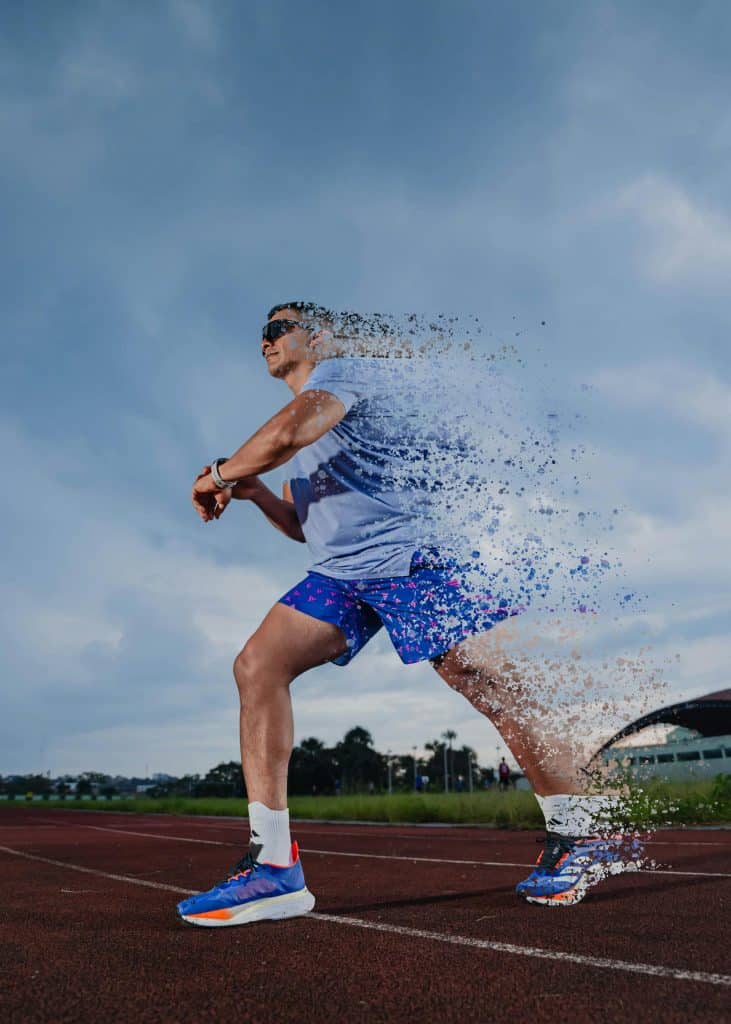
You will learn how to create a dispersion effect in Photoshop by separating parts of an image and transforming them into scattered particles. They will practice selection tools, layer masks, brush techniques, and creative composition.
Scripture
2 Corinthians 4:8–9 (HCSB)
“We are pressured in every way but not crushed; we are perplexed but not in despair; we are persecuted but not abandoned; we are struck down but not destroyed.”
Application to Lesson:
Just like this design shows something breaking apart, it reminds us that even when life feels like it’s falling apart, we are not destroyed. What looks like breaking can still have purpose, movement, and beauty. YAH can use every piece.
Course Content
Questions
- What does this effect make you feel when you look at it?
- Does it look like the person is disappearing, or transforming?
- How can something “breaking apart” still look powerful?
Project Overview
Students will recreate a dispersion effect similar to the runner and walking figure:
- One subject in motion
- One side intact
- One side dispersing into particles
Steps
1. Open and Prep Image
- Open Photoshop
- File > Open (choose subject image)
- Right click layer → Duplicate Layer
2. Cut Out the Subject
- Use Quick Selection Tool or Select Subject
- Click Select and Mask
- Refine edges (hair, arms, legs)
- Output as Layer Mask
3. Expand Canvas (Optional but Recommended)
- Image > Canvas Size
- Add space in direction of dispersion (left or right)
4. Duplicate the Subject Layer
- You should now have:
- Bottom layer: original subject
- Top layer: dispersion layer
5. Add Layer Mask to Top Layer
- Select top layer → Click Add Layer Mask
6. Create Dispersion Brushes
- Use a splatter brush (or import custom dispersion brushes)
- Adjust:
- Size variation
- Scatter
- Spacing
7. Paint the Dispersion Effect
- Select the mask on the top layer
- Use a black brush to remove parts of the body
- Focus on one side (like the back of the runner)
8. Add Particle Movement
- Select erased pieces using Lasso Tool
- Press Ctrl + J to duplicate pieces
- Use:
- Move Tool (V)
- Rotate (Ctrl + T)
- Spread particles outward
9. Add Depth
- Vary brush sizes
- Smaller particles further away
- Larger pieces closer to the body
10. Final Adjustments
- Add Motion Blur (Filter > Blur > Motion Blur) to particles
- Adjust brightness/contrast or color grading
- Clean edges
Homework
Select your own image and create the effect.
- Export as JPG
- Upload to Google Classroom
- Write 2–3 sentences:
- What does the design represent
Submit the 7 designs you will be showcasing for Open House